
Real Estate Agent Profiles deliver enhanced data accuracy by consolidating fragmented agent information from multiple MLS boards into single, authoritative profiles. Previously, the same agent might appear as separate entities across different systems (like "Dan Lawrence" with ID 555 on one MLS and "D. Lawrence" with ID 444 on another), creating confusion and unreliable data. Our standardization algorithms now cross-reference agent data across all sources, assign unified IDs, and present clean, consistent information through a redesigned interface that surfaces key insights, organizes data into clear sections, and provides visual tools to quickly evaluate agent prospects.
Accessing the Agent BETA View
Navigate to the Real Estate dropdown in MMI. Select Agents and search using your preferred criteria. Click on an agent’s name in the results list to open their profile. On their Fast Facts page you will see a button called Beta Profile. Once you click it, you’ll see the redesigned Agent BETA Profile layout.
Navigating the BETA View
At the very top of the new interface, you’ll see the navigation tabs that allow you to switch between the Profile, Active Listings, and Sold Listings views. Directly below the tabs, the agent’s name is displayed prominently, with their phone number and email listed just beneath for quick access.
The Action Buttons: A set of icons at the top left are:
- Track Agent – Add the agent to a tracking list
- Push to CRM – Send agent details into your system
- Share Profile – Copy a direct link
- Copy Info – Copy the agent’s details
- Call – One-click phone dial
- Email – Start an email to the agent
This section ensures you can quickly identify the agent, contact them, and take immediate action without scrolling further down the page.
Adjust Your Default Profile View
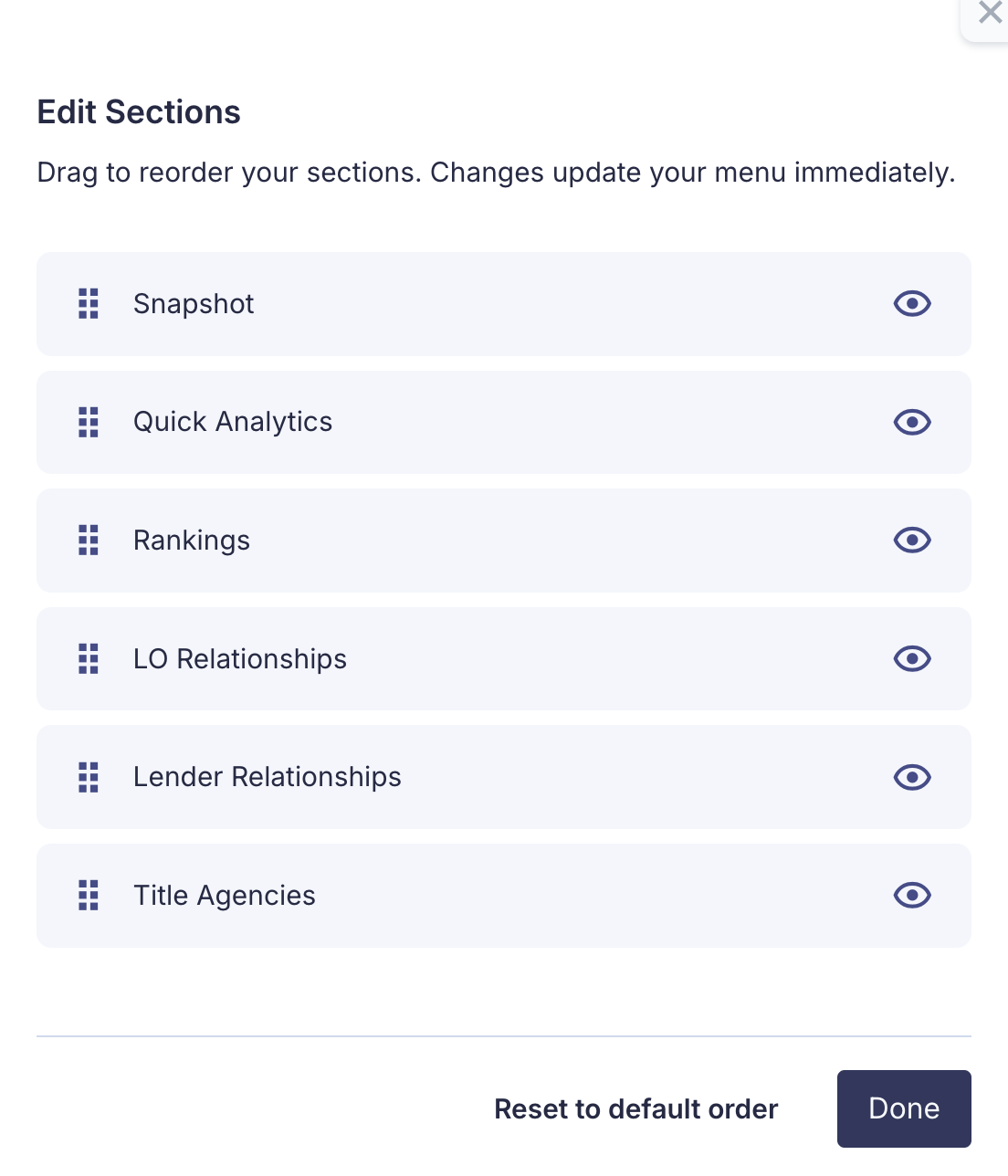
Customize how sections appear, making it easier to organize the information you use most often. Instead of viewing sections in a fixed order, you can rearrange them, hide ones you don’t need, and restore the default layout at any time.
Simply click on the adjust icon and slide the different sections to where you would like them to be viewed in your profiles within MMI.
Snapshot
The Snapshot widget provides quick visual insights into:
- Price Point Distribution: Breakdowns of transactions under $300K, $300K–$600K, and $600K+
- Buy Side vs. List Side: Clear visualization of whether the agent leans more toward buy-side, list-side, or double-sided deals
Both charts can be filtered by timeframe using the dropdown at the top.
Quick Analytics
The Quick Analytics section highlights essential metrics:
Total Transactions, Sales Volume, Buy Side Volume, List Side Volume, and Double Side Volume.
Below these key stats, you’ll also find a trend graph showing performance movement over time. The timeframe for analytics can be adjusted using the filter at the top of the widget.
Rankings
See your National, State, and Regional ranking in a consolidated view
LO Relationships
A dedicated widget lists all loan officers the agent has worked with, including:
Name (hyperlinked to LO profile), Transactions, Production Volume, and Last Deal Date.
Lender Relationships
This section highlights the agent’s connections with lenders, showing:
Lender name (hyperlinked to profile), Transactions, Production Volume, Last Deal Date, and Loan Types.
Title Agency Relationships
Here you’ll see title company partnerships, with details including:
Title, Company Name, Transactions, Production Volume, and Last Deal Date.
Each widget includes its own timeframe filter for more precise analysis.
Quick Actions Sidebar
The right-hand sidebar makes it easy to act on the information you see:
- ChatMMI: Our AI that allows you to ask questions and take actions on the data.
- Contact Details: Phone Number and Email, ready to copy or click.
- Core Info: Active, Sold, Buy Side, List Side, Dual Side.
- Quick Actions: Push to CRM, track, or copy base details.
- Search Shortcuts: One-click access to Google and LinkedIn searches for deeper research.
Associated Agents
The Associated Agents section appears in the right sidebar of the BETA profile and displays all variations of the same agent across different boards and states. For example, John R. Carr V might show profiles with different contact information, representing different time periods or locations in his business. Some profiles may be outdated snapshots from when the agent was active on certain boards years ago.
Now, instead of seeing fragmented sold counts of 5 transactions on one profile and 4 on another (with unknown overlap), users can access a complete aggregated view of the agent's total activity across all boards and jurisdictions where they operate.
Agent CRM Push Payload (Push to CRM / Push to Bonzo)
When you click Push to CRM (or Push to Bonzo) from an agent profile, MMI sends a structured payload to your connected CRM. This payload includes key agent details—such as name, company, contact info, location, and production metrics—so the agent can be created or updated automatically in your system.
This is the exact data package your CRM receives at the time of the push.
What this payload is used for
Creating a new agent record in your CRM (if one does not exist)
Updating an existing record with the latest available agent data
Capturing production insights (transactions / volume) for segmentation and follow-up
Note: The sample payload below contains dummy/example values for demonstration purposes only. Your real payload will populate with the live agent information shown in MMI at the time of the push.
{
  "timestamp": "2099-01-01 00:00:00",
  "mmi_user": "example.user@getbonzo.com",
  "type": "Real Estate",
  "fastfacts": "https://new.mmi.run/agents/EXAMPLE_AGENT_ID_12345",
  "first_name": "DUMMY",
  "last_name": "CONTACT",
  "firstname": "DUMMY",
  "lastname": "CONTACT",
  "company": "Example Company (Dummy Data)",
  "agent_id": "EXAMPLE_AGENT_ID_12345",
  "oppapp": "Example Tier",
  "linkedin": "https://www.linkedin.com/in/example-profile-dummy-data",
  "google": "https%3A%2F%2Fwww.google.com%2Fsearch%3Fq%3DDUMMY+CONTACT+realestate+Example+Company",
  "email": "dummy.contact@example.com",
  "phone": "5550001234",
  "branch_address": "123 Example St (Dummy Data)",
  "branch_city": "Example City",
  "branch_state": "EX",
  "branch_zip": "00000",
  "notes": "THIS IS DUMMY / EXAMPLE DATA FOR DEMO PURPOSES ONLY",
  "agent_active_listings": "0",
  "agent_active_volume": "0",
  "agent_rolling_buyside_volume": "0",
  "agent_rolling_buyside_transactions": "0",
  "agent_rolling_listside_volume": "0",
  "agent_rolling_listside_transactions": "0",
  "agent_ytd_buyside_transactions": "0",
  "agent_ytd_buyside_volume": "0",
  "agent_ytd_listside_transactions": "0",
  "agent_ytd_listside_volume": "0"
}
By presenting insights through intuitive visualizations, detailed relationship widgets, and property-level tabs, you can quickly identify promising agents and understand their complete market role across all MLS sources. The unified data approach eliminates duplicate or conflicting agent information, giving you confidence that the metrics and relationships you're seeing represent the agent's true performance. Everything is available on a single page, eliminating the need to jump between multiple tables or screens while providing the most comprehensive and reliable agent intelligence available in the market.
Comments
0 comments
Article is closed for comments.